

<img height="1" width="1" style="display:none;" alt="" src="https://dc.ads.linkedin.com/collect/?pid=306561&amp;fmt=gif">

USING YOUR LEAD CAPTURE APP

How to get started

Logging in to the Entegy Event app

Watch the below video to see how to log in. Please note, you'll need to have handy the introduction email we sent regarding the app.

How to use your Entegy Event app

Take a look at the below video to see how to navigate your app and capture your event leads.

How to add custom questions

Adding questions from the App

  1. Log into your account

  2. Click my event (down the bottom)

  3. Click ‘view COMPANY NAME company portal'

  4. Scroll down to qualifying questions

  5. Add questions as needed

Adding questions from the Web Portal

  1. Log into your account

  2. Click ‘COMPANY NAME' company portal at the top of the screen

  3. Click qualifying questions tab on the left

  4. Add questions as needed

How to download leads via the Web App

(computer option)

  1. Open the email you received with your log in details email, scroll to the bottom of the email and click but button "Web App" button and log in.

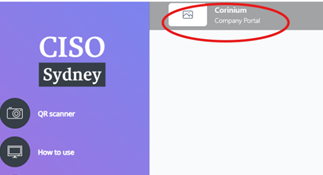
2. Once you are logged in you will see ‘company portal’ at the top, click this and it will take you through to another page 
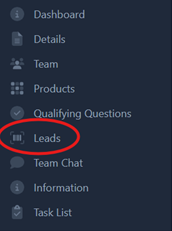
3. On the left there will be an option for ‘leads’ and then you can download from there.
Still have questions?

Not to worry. Simply email our team and we will help get you sorted.

APAC enquiries

Megan Campbell
Operations Director, APAC
Corinium

megan.campbell@coriniumgroup.com

UK & US enquiries

Charlotte Mellor
Operations Director, UK & US
Corinium

charlotte.mellor@coriniumgroup.com